


 82
82
Assigning Residents to Open Spaces on the Bulk Unit Assignment (BUA) Board
The Bulk Unit Assignment (BUA) board simplifies the unit assignment and notification process for student properties.
To view the BUA in Entrata, go to Residents >> Bulk Unit Assignments.
Assigning Residents to Open Spaces
- In Entrata, go to Residents >> Bulk Unit Assignments.
- To find available units, select an option from each drop-down menu:
- Property
- Lease Term
- Floor Plan
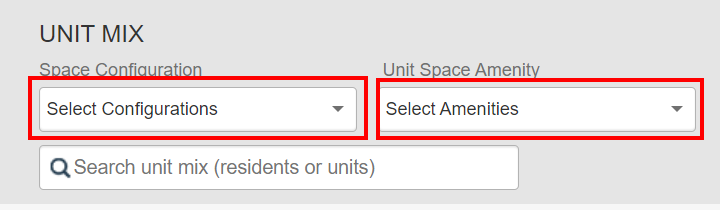
- If desired, narrow down the list of available units and unassigned residents by selecting an option from the Space Configuration and the Unit Space Amenity drop-down menus.
- Select an option under Unit Gender. This setting defaults to All.
- To refine the assignment list results further, click

 Filters Applied on the left side of the screen to open the Roommate Interest Filters window.
- Adding Roommate Interest Filters
- In the Roommate Interests Filters window, select an option(s) from the drop-down menus in each section.
- The number of Filter Matches displays at the bottom of the window and updates as you adjust your filters.
- When finished, click Apply Filters to filter the assignment list.
- Adding Roommate Interest Filters
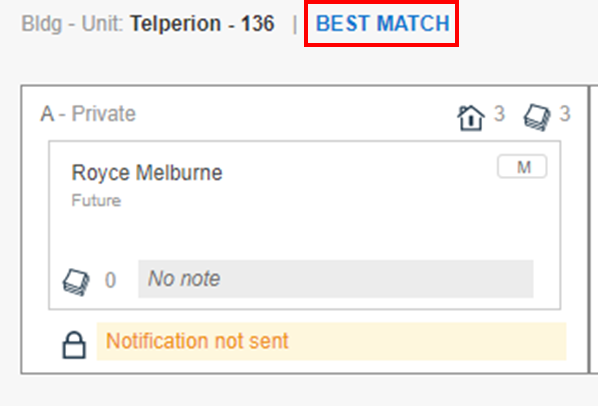
If you're trying to fill a space for a unit and the other spaces already have residents assigned to them, you can also click Best Match next to the unit number to display a prioritized list of students on the Assignment List whose preference and interest responses best match those of the other students in the unit.

- To assign residents to open spaces, click and drag each resident name to the desired open space.
- You can also click and drag groups, and then click and drag individuals in the group to different unit spaces within the assigned unit.
- If a pop-up window appears warning you that residents with conflicting preferences or space options are assigned to the same unit, click Proceed to override the warning. Otherwise, reassign the resident to a new unit or return them to the assignment list.
Reassigning to a Different Unit
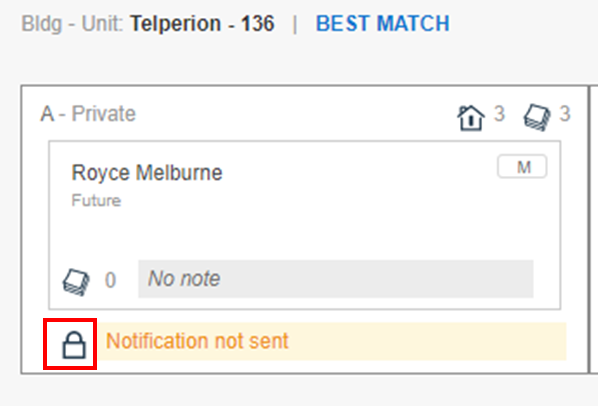
- If applicable, click the lock icon

 next to the unit space to unlock the resident from the current unit or space.

- Drag and drop the resident's name to a different unit space.
Returning a Resident to the Assignment List
Removing a resident from a unit returns them to the assignment list.
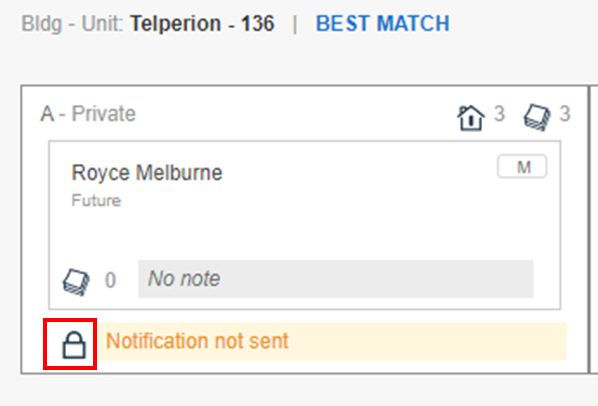
- If applicable, click the lock icon
 next to the unit space to unlock the resident from the current unit space.
- Drag and drop the resident's name back to the assignment list.
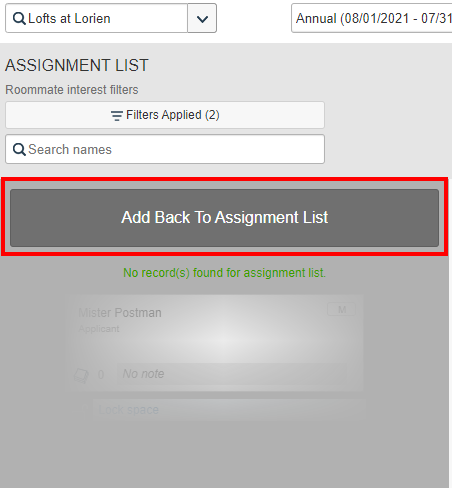
- Repeat steps 2–6 until you've assigned residents from the assignment list to all open spaces for each floor plan in each lease term.
- Once finished, scroll to the bottom of the screen and click Lock All Filled Unit Spaces. A gray lock icon
 displays in-line with residents' names. Only future residents in locked units are included in the notification queue.
Resetting Unit Assignments
If you have the right permissions, you can reset the Bulk Unit Assignment board and move all residents associated to the selected lease term back to the assignment list for reassignment.
- Students who are already moved in with a status of Current or Renewal are automatically assigned to their current unit and are locked on the BUA. You can only remove them from an assigned space by performing a transfer.
- In the top-right of the Bulk Unit Assignment screen, click

 Reset Units.
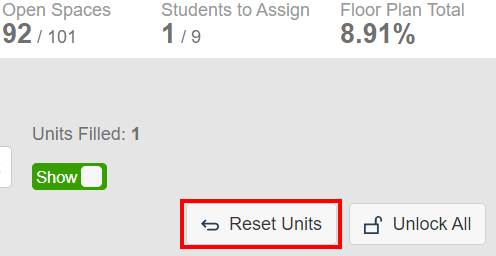
- In the Reset Unit Assignments window, select the type of assignments you'd like to reset.
- The following are the types of assignments you can select:
- All Unnotified Unlocked Unit Spaces: This option removes only residents from unlocked spaces who haven't been notified.
- All Unnotified Locked and Unlocked Unit Spaces: This option removes residents from both locked and unlocked spaces if they haven't been notified of their unit assignment yet.
- All Notified and Unnotified Locked and Unlocked Unit Spaces: This option removes residents from both locked and unlocked spaces, regardless of whether or not they've been notified.
- The following are the types of assignments you can select:
- Click Proceed.
- Enter a Reason For Reset, and then click Confirm to rest unit assignments based on your selections.
Any students who have been reset will show the Reset Reason and a timestamp of the reset in the Activity Log of their Resident Profile.
Notes:
- If desired, you can individually lock a unit assignment by clicking the lock icon on the assigned space.
- If you have the correct permissions, you can click Unlock All to unlock all unnotified students from their unit spaces.
Related Articles:
Edit Roommate Interest Questions
From the Bulk Unit Assignment Board, you can access and edit a student's roommate interest questions if needed.
Create a Roommate Group on the BUA
From the Bulk Unit Assignment Board, you can create roommate groups on the assignment list before making unit assignments.
Add a BUA Resident Note
From the Bulk Unit Assignment Board, you can add a note to a resident regarding their assignment.
Send Unit Assignment Notifications
From the Bulk Unit Assignment Board, you can send assignment notifications once unit assignments have been made.
UPDATED: 03/30/2022


